

These guidelines apply to all staff members, full-time lecturers, research assistants and student assistants.
The guidelines for students and external lecturers can be found here.
Checklist before changing your password
To ensure that your password change goes as quickly and smoothly as possible, please note the following:
- Please carry out the password change exclusively at your docking station in the office (HWR workstation). Changing your password in your Home Office via VPN can be problematic; if its absolutely necessary please contact the IT Hotline
- Ensure that you have a wired network connection and that you are not connected to Eduroam
- Get an overview of which devices and how many HWR services you are logged into, as after changing your password you will need to log in again everywhere or save new login details. Otherwise, you will constantly be making incorrect login attempts, and if you enter the wrong details too often in a short space of time, your account will be automatically suspended temporarily.
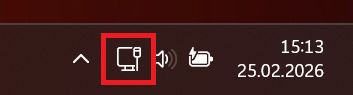

Attention
As soon as your password is changed, it will immediately apply to all existing logins associated with your HWR account. This includes Eduroam, Microsoft365 and more…
Password change
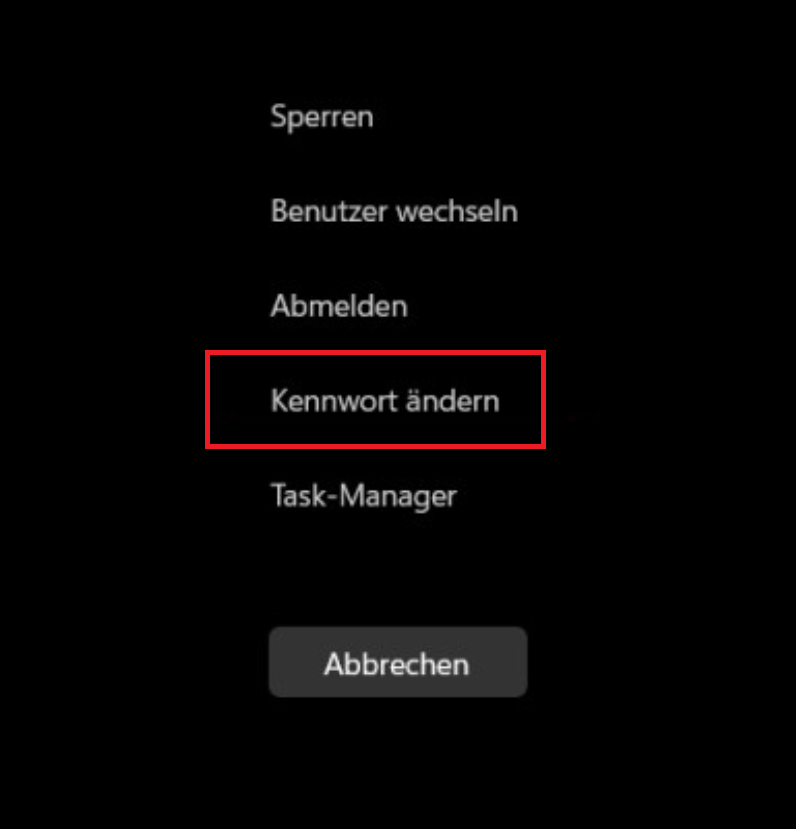
- Press Ctrl + Alt + Del and select Change password.
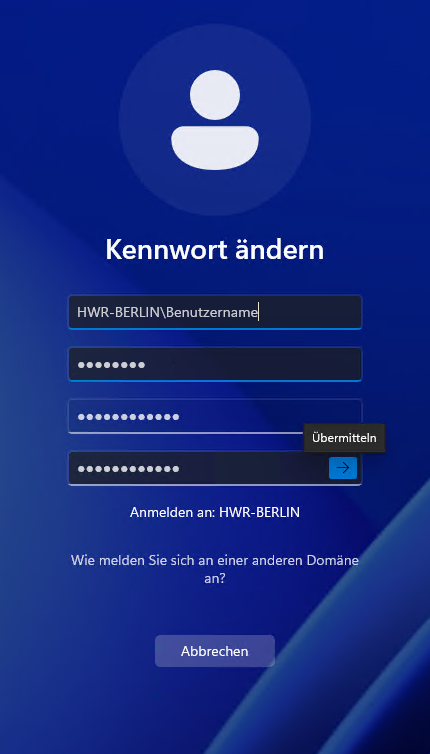
- Please enter your current password once, then enter your new password twice to confirm it.
- Aktuelle Passwortrichtlinien
- minimum 12 characters long
- at least one number and one special character
- no “previous password+1” or similar
- Do not use any details that could be directly linked to you, such as names, birthdays, place of residence, partner, children, etc.
- Recommendations
- Don’t make your password unnecessarily complicated if you can’t remember it anyway and end up writing it down on a piece of paper under your keyboard
- The longer, the better
- Take, for example, specific memories or events you’re personally familiar with, and use them to create a mnemonic consisting of 3–4 words. This way, you can easily create long passwords that include special characters and are still easy for a human to remember
- 14*SUN*water*SALMON*
Table_Sausage_Confetti=3
Cheese/Rose/Champagne/4
Special case HWR VPN
Most people at HWR use the Watchguard SSL VPN; in this case, you simply need to enter your new password if a window pops up asking for it.
For the Windows-integrated HWR VPN, you must delete the old login details and then re-enter them.
To do this, type ‘VPN’ into the Windows search bar and click on ‘Settings’. Then go to ‘Advanced options’ and select ‘Delete/Remove’.
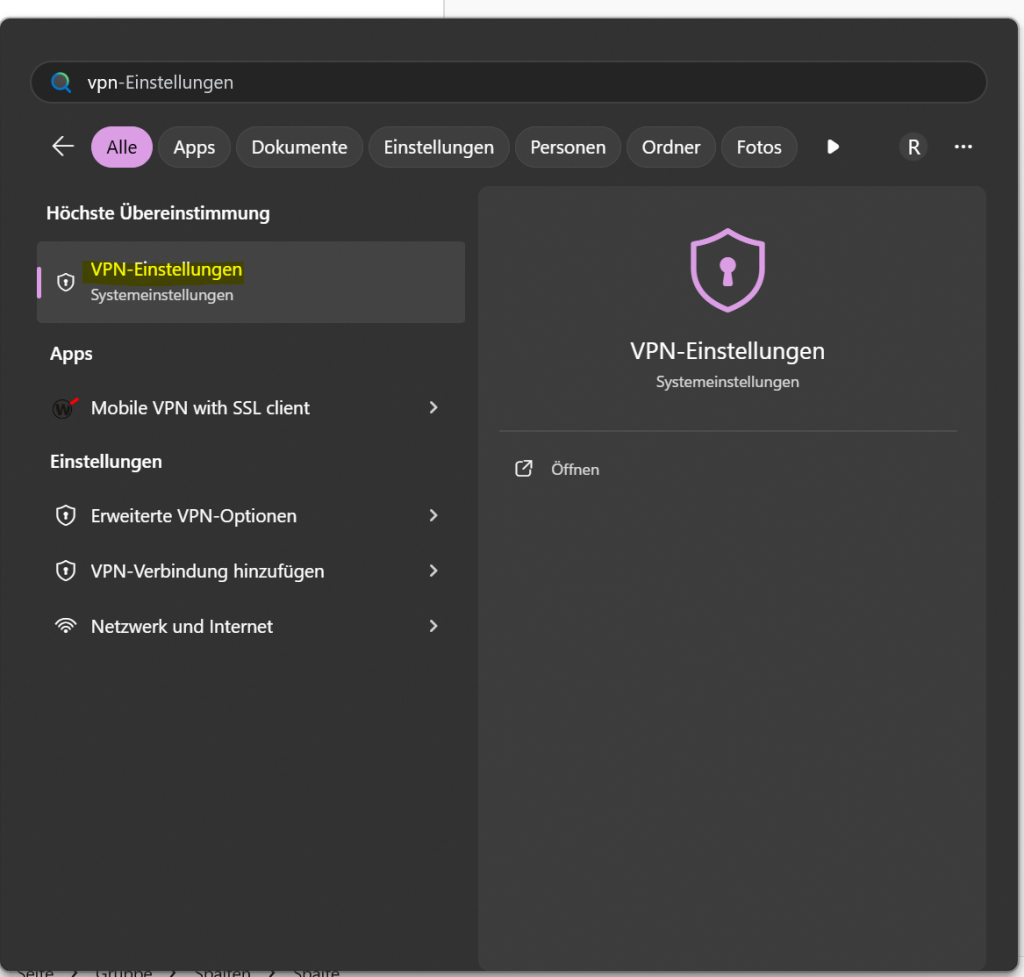
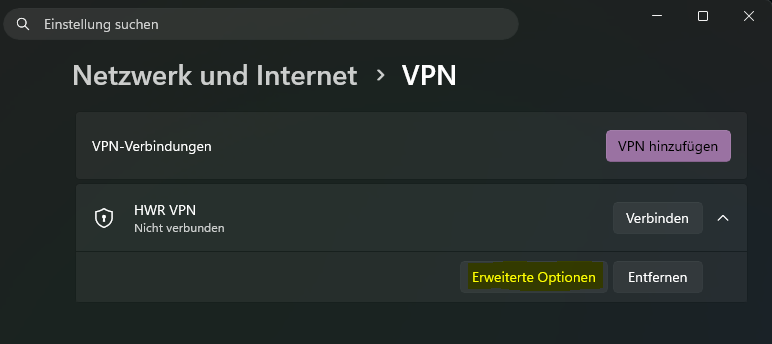
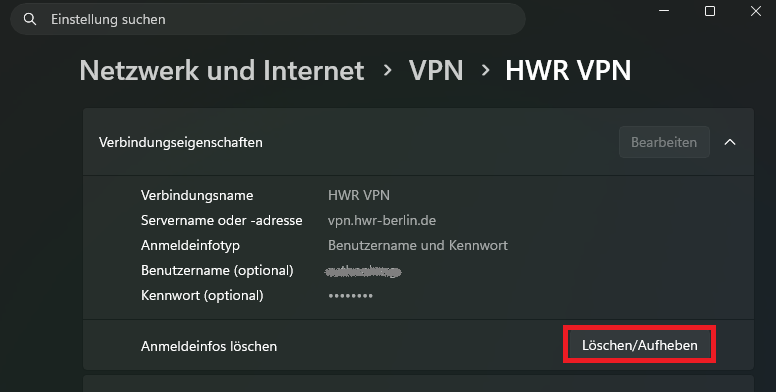
Then start the HWR VPN again, a message will appear stating that action is required, and you will then need to enter your login details.
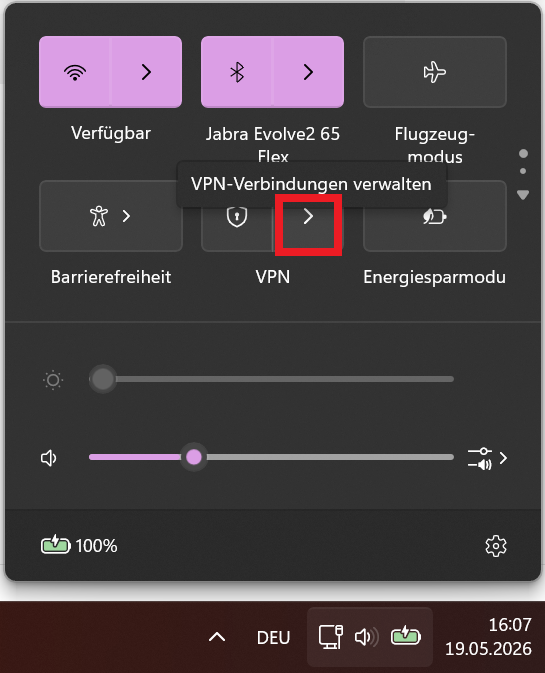
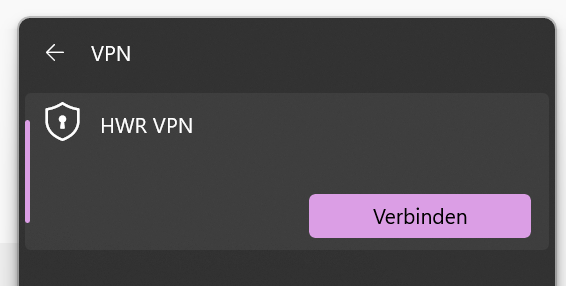
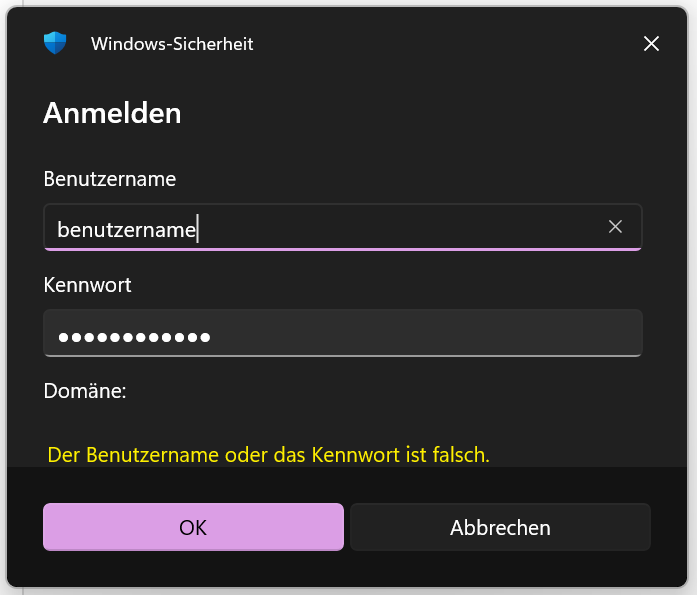
If the HWR VPN does not reconnect after that, please use the pre-installed Watchguard VPN on your Laptop as an alternative and contact the IT Hotline
Password change from outside
If your account has been temporarily suspended – for example, because you have ignored the mandatory password change emails over the last few months or because you are currently unable to visit the HWR for other reasons and need to change your password – please follow these steps:
- Log in to Outlook Web Access
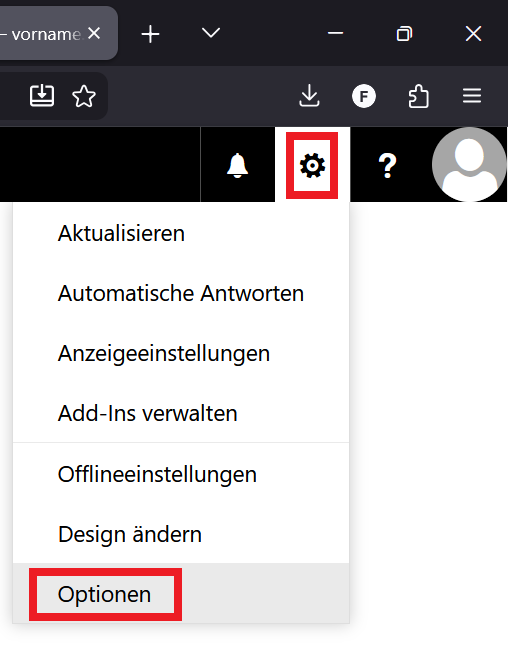
- Click on the cogwheel in the top right corner and then options
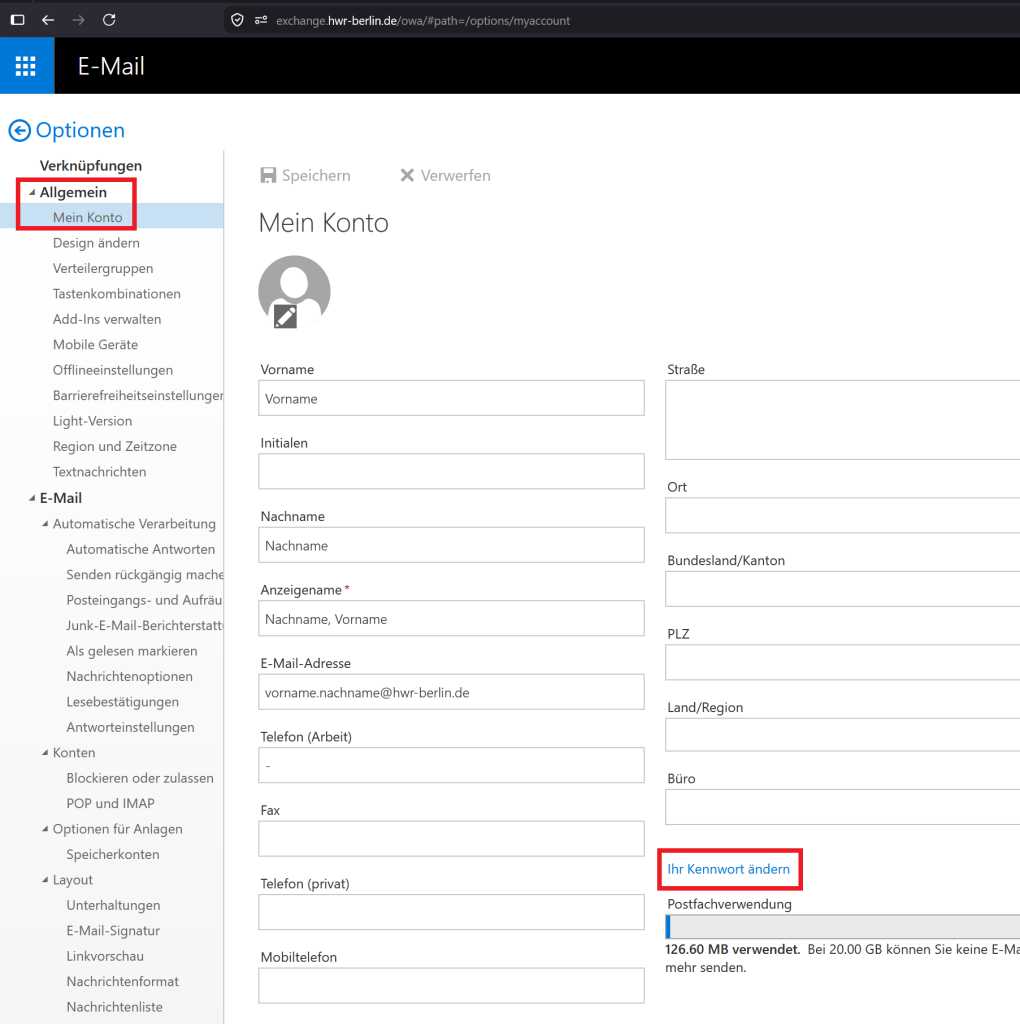
3. Go to the section General -> My Account and then click on change password
4. As your work laptop – and therefore your Windows login – still needs to be updated with the new password information, please follow these steps:
5. Connect to the VPN and enter your new password.
6. Lock the laptop using the Windows + L shortcut.
7. Log back into Windows using your new password.
8. Once this is done, the password change from outside is complete and you can go through the rest of the checklist.
This checklist will help you find any other saved logins you must change
These logins on your HWR Laptop:
Logins on your private devices:
Remember all your devices:
- Smartphone
- Tablet
- Laptop
- Desktop