The Wi-Fi connection at HWR Berlin is provided via the Education Roaming (eduroam) service of the Deutsches Forschungs Netz (DFN). To install eduroam on your iPhone or iPad, your login details must be linked to the certificate.
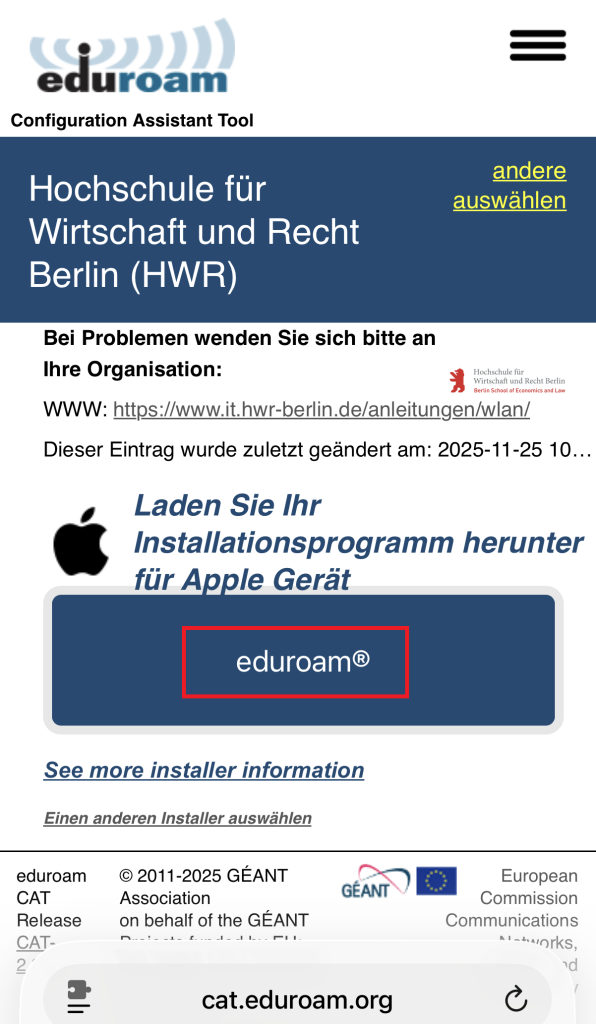
To do this, please download the eduroam Configuration Assistant (CAT Tool).
1. Download Certificate
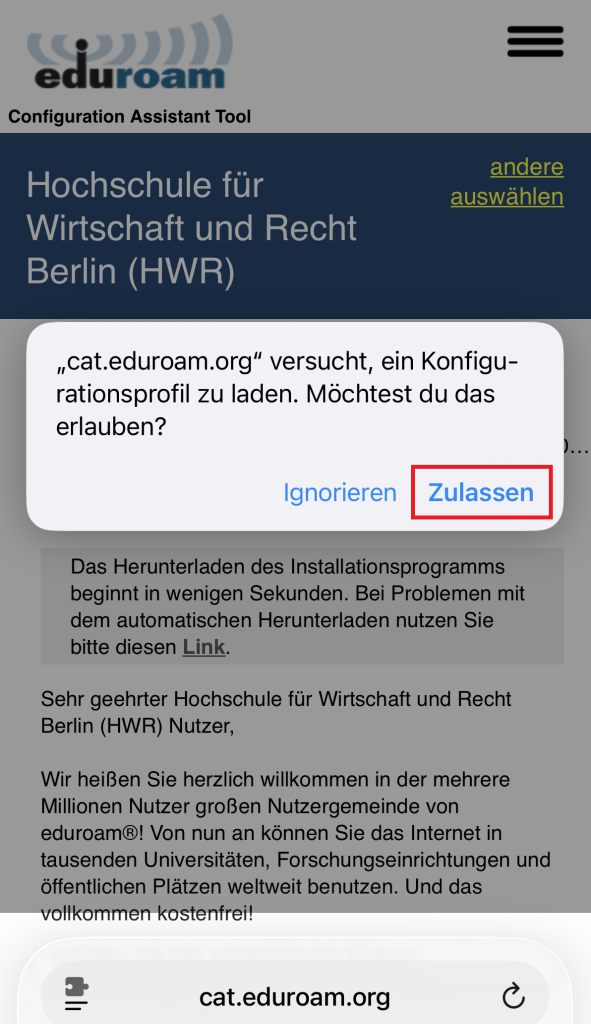
To set up Eduroam, download the new configuration profile.
Please use Safari, otherwise the certificate wont show up in the system settings in the next step.
2. Install Certificate
Go to Settings -> General and select VPN and Device Management.
If you did not use Safari to download the certificate, there is a high chance it wont show up here.
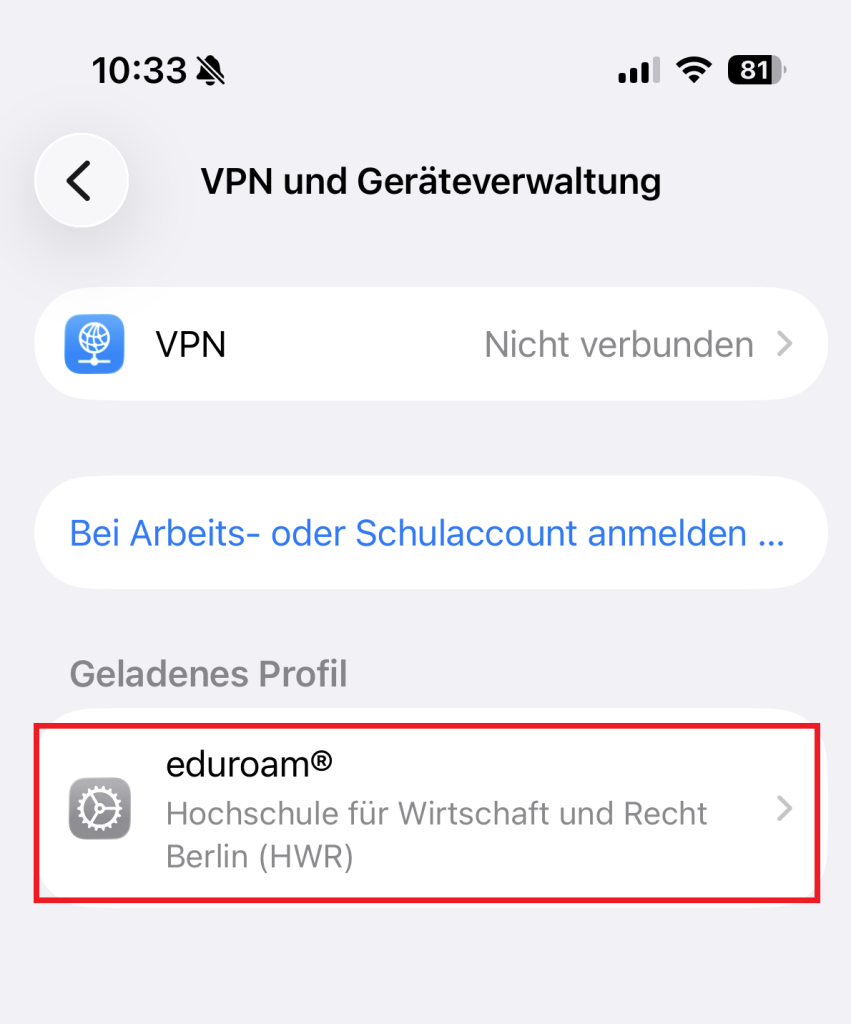
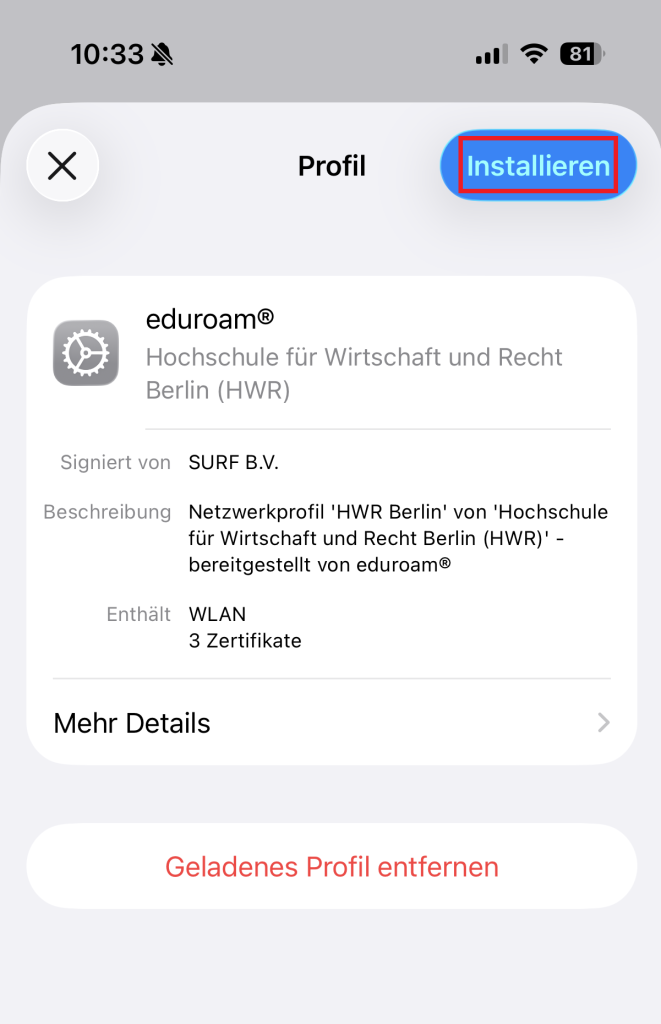
3. Install Certificate
Confirm the installation of the certificate by entering your PIN or using your fingerprint.
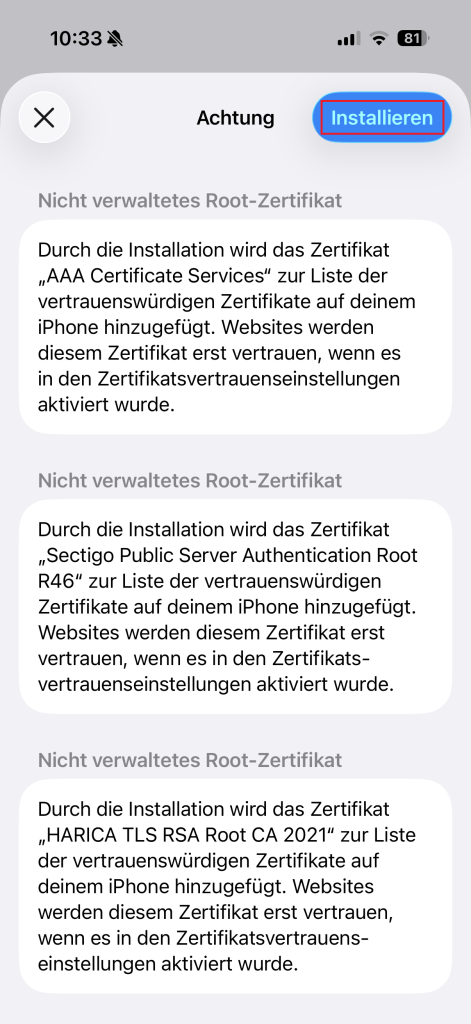
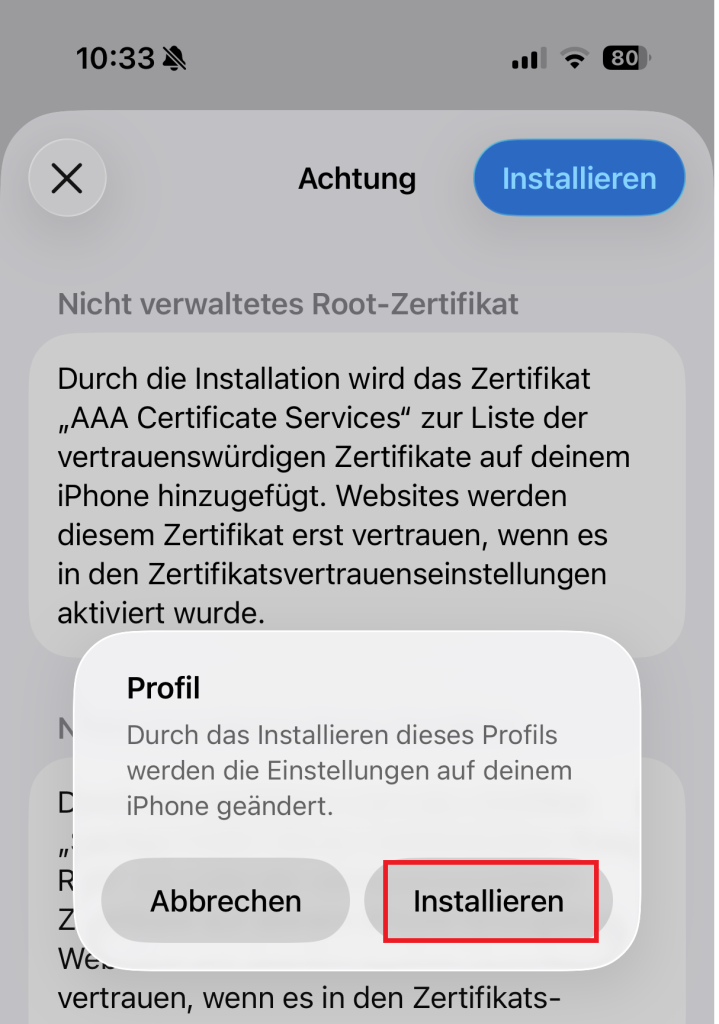
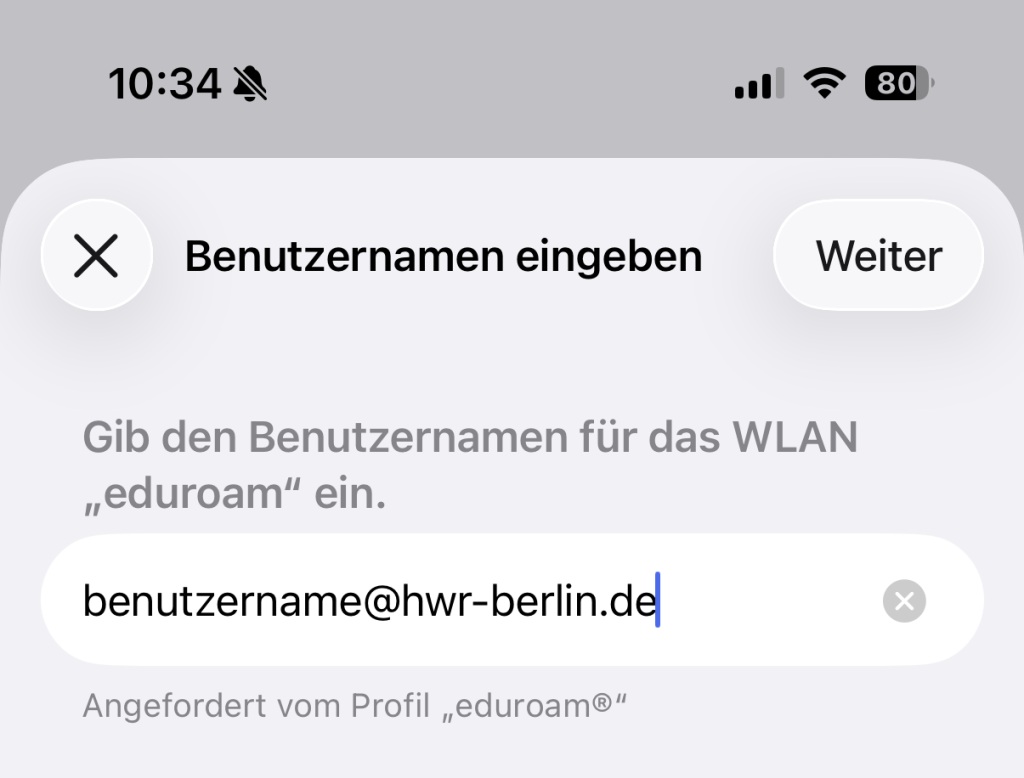
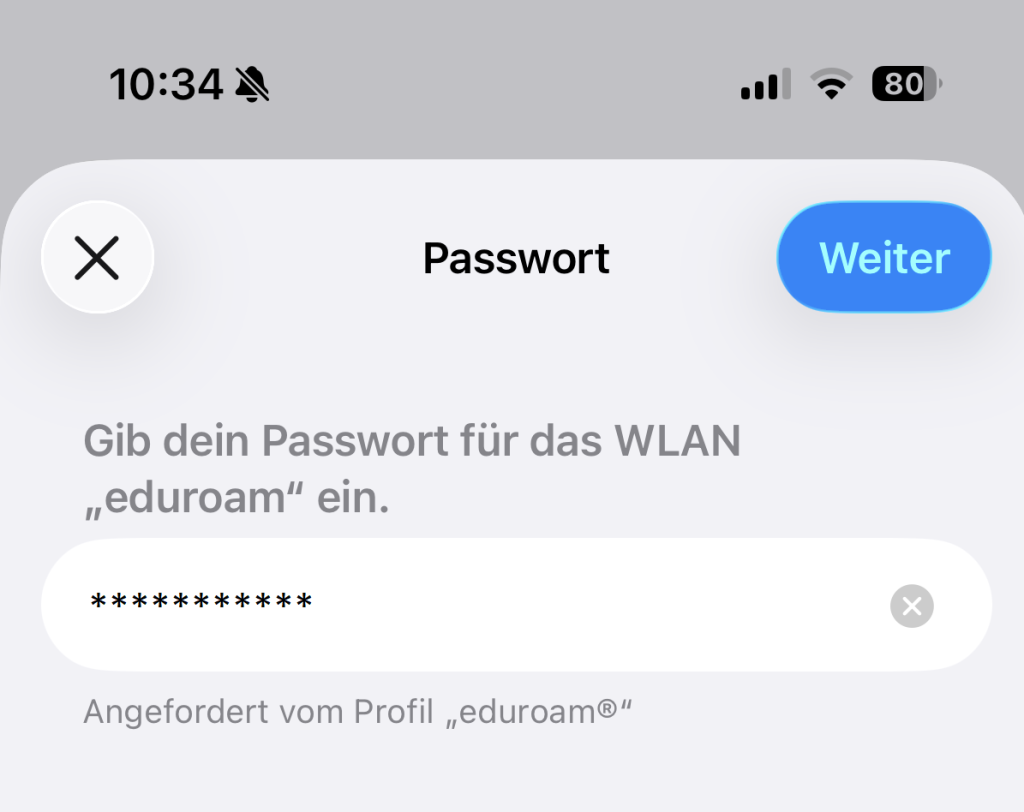
4. Enter your Login data
To log in to the Eduroam network, you need to use your username@domain and the password for your HWR account.
Your username alone will not work.
Your email address will not work either.
s_username25@hwr-berlin.de for Students
e_username@hwr-berlin.de for Lecturers
username@hwr-berlin.de for Employees and Professors
g_username@hwr-berlin.de for Guests etc.
5. Troubleshooting
If your Eduroam isn’t connecting, switch your Wi-Fi off and then back on.
If that doesn’t help, restart your device.
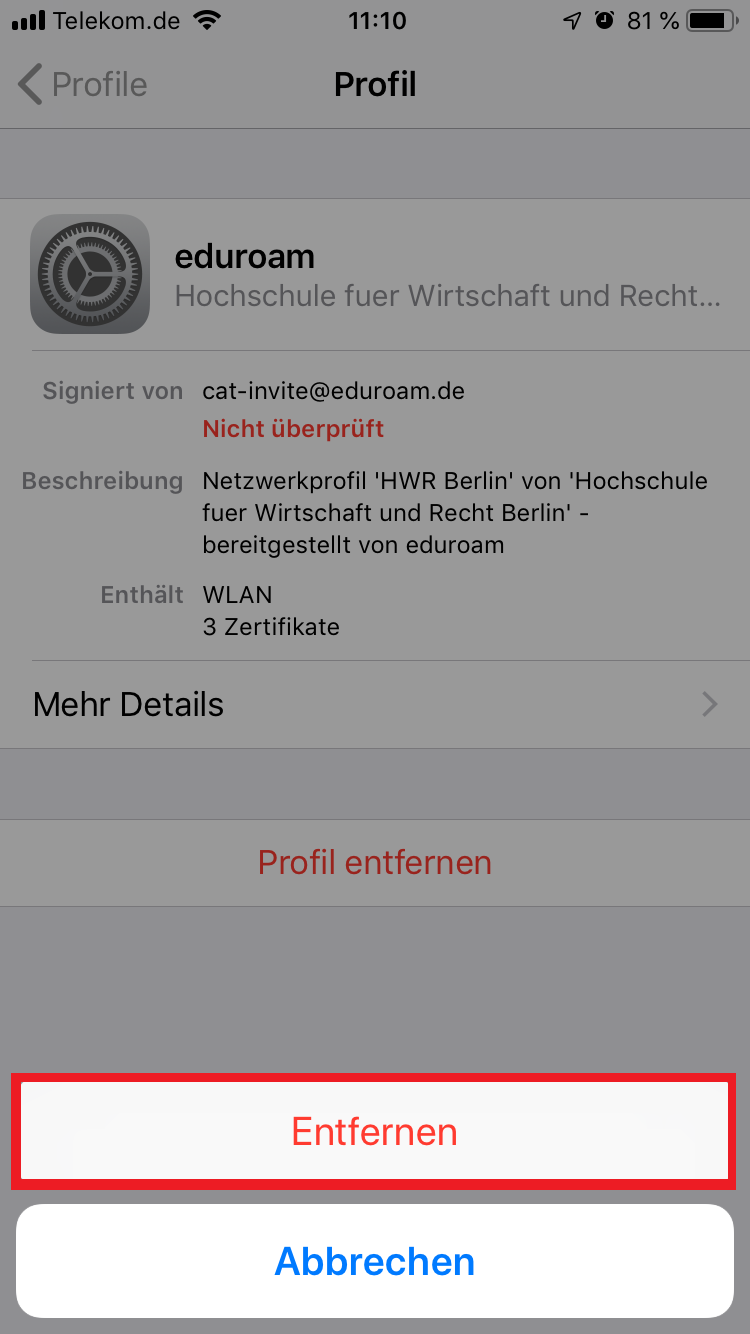
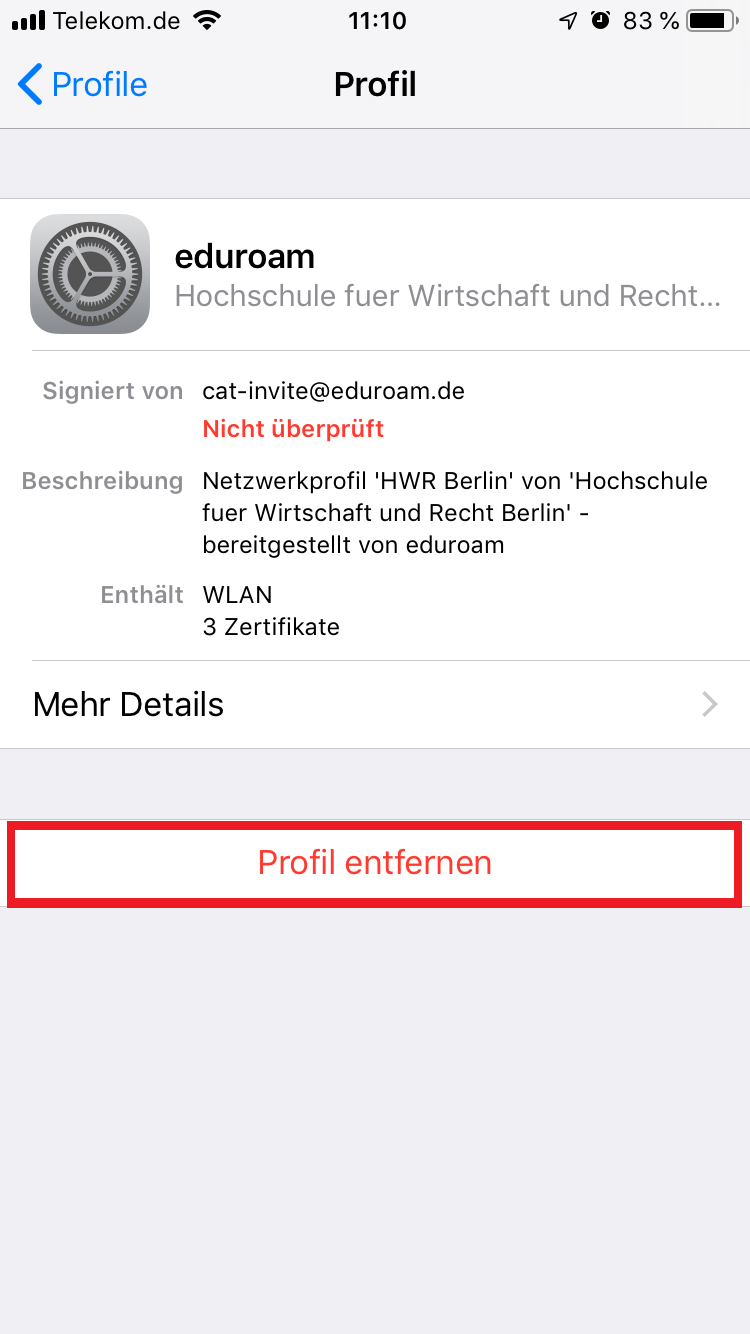
As a last resort, you can delete the profile and then reinstall it.
In our experience, the problem is usually caused by wrong login data.
Delete Profile
If you have used Eduroam (HWR WiFi) on your current device in the past, first remove the old Eduroam profile by following these steps.